

Modern streaming platforms like Netflix and Max have revolutionized the way we consume entertainment, delivering a steady stream of reality TV, blockbuster films, and cult-favorite series directly to our living rooms. Instead of braving the theater crowds or risking a chaotic "Chicken Jockey" encounter, many viewers now prefer the comfort and convenience of home streaming. But how can you elevate your viewing experience to match the clarity and immersion of a cinematic presentation? The answer lies in 4K—here’s your complete guide to streaming Netflix in stunning 4K resolution.
How to Stream Netflix in 4K
Before diving into ultra-high-definition streaming, confirm your Netflix subscription plan. Only the Premium plan supports 4K (Ultra HD) content. The lower-tier options—Standard with Ads and Standard—are limited to 1080p resolution.
Current Netflix US Plans (as of 2025):
- Standard with Ads: $7.99/month (up to 1080p, no 4K)
- Standard: $17.99/month (up to 1080p, no 4K)
- Premium: $24.99/month (supports 4K Ultra HD and HDR)
Do You Have the Right Equipment for 4K?
To enjoy Netflix in 4K, your entire setup must support it. Start with your display: your TV or monitor must be 4K-capable (3840 x 2160 resolution). If you're using a streaming device—such as an Amazon Fire Stick 4K Max or Apple TV 4K—ensure it’s a 4K-compatible model. Additionally, the HDMI cable connecting your device to the display should meet the bandwidth demands of 4K content. Netflix recommends using a Premium High Speed HDMI or Ultra High Speed HDMI cable to ensure smooth, high-quality playback.
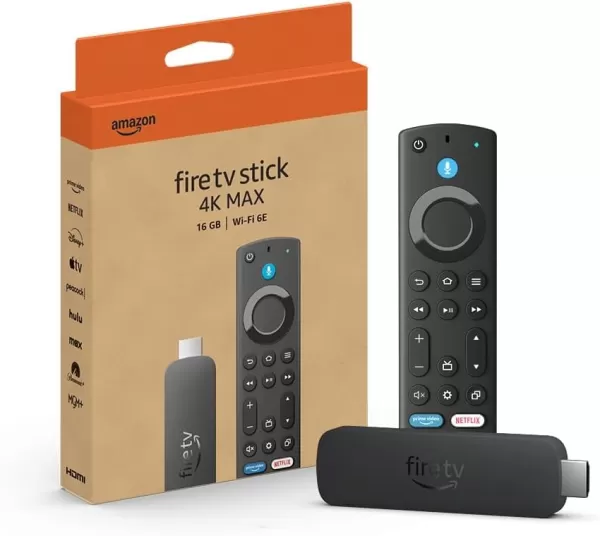
Budget 4K Streaming Device
Amazon Fire TV Stick 4K Max
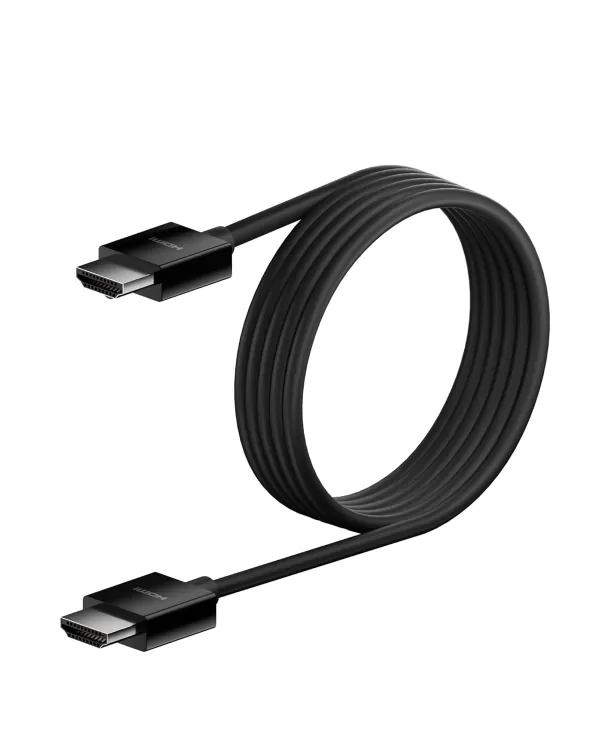
HDMI for 4K
Belkin HDMI 2.1 Ultra High Speed

Best 4K TV
LG 65" Class OLED evo C4
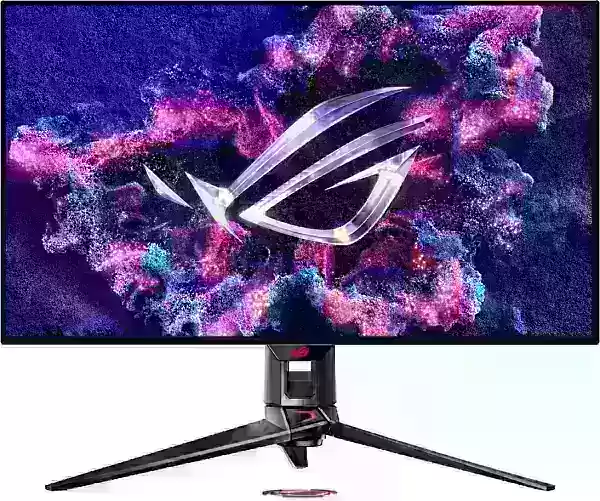
Best 4K Monitor (also ideal for gaming)
Asus ROG Swift PG32UCDP
Check Your Playback Settings
Once your plan and hardware are confirmed, adjust your Netflix playback settings. Log in to your Netflix account via a web browser on your PC. Click your profile icon, select Manage Profiles, and choose the profile you’ll use for 4K streaming. Scroll down to Playback Settings and set the video quality to High. This setting enables 4K streaming when viewing content that supports it.
Keep in mind: selecting “High” increases data usage and demands a strong internet connection. If your bandwidth is insufficient, you may experience buffering or playback issues. Additionally, streaming in 4K consumes significantly more data, so avoid using it on metered connections unless necessary.
Are There Other Ways to Watch Netflix in 4K?
While streaming dominates, physical media is experiencing a resurgence. Thanks to a Blu-ray revival, select Netflix originals—such as Daredevil, Arcane, The Crown, Stranger Things, and Wednesday—are now available on 4K Ultra HD Blu-ray. These physical releases offer collectors and enthusiasts a permanent, high-fidelity option, safeguarding their favorite shows against sudden removal from streaming platforms.
In a digital age where content can vanish overnight, owning a 4K Blu-ray copy ensures lasting access—until, of course, disc drives become obsolete.